Tek Parts Manager
This is an MS Excel WorkBook which acts like an inventory list of Tek items. Several VB Macros can be initiated to aid in adding, editing or just finding parts.
Make sure that your Excel is not set to "Disable all macros without notification" (Options/ Trust Center/Trust Center Settings/Macro settings).
May 24, 2024 - New version 1.33
Changes
from 1.32 to 1.33:
New Data:
Setting focus to Location with Enter or Tab was skipped if Location
contained data. Changed to never skip.
Added button to close
form.
Changes from 1.31 to 1.32:
Find / Edit
Data:
The Exit Prog button which should be enabled while no
changes has been done could be disabled at start on Excel newer than 2007.
Changes from 1.3 to 1.31:
Find / Edit
Data:
First P/N box could be manually cleared (select and
backstep or delete). Now it can only be deleted on Worksheets with a name
beginning with characters other than numbers (no P/N).
Clearing first P/N box on
a Worksheet witha name beginning with characters other than numbers changed from setting focus to
center to focus remain on first box.
Search can now be done even if
the first P/N box is less than 3 digits or empty on Worksheets with a name
beginning with characters other than numbers (no P/N).
If
keyboard Escape is pressed in the center P/N box Exit Program button will now
get focus if is enabled and the center P/N box is empty, if not the form will be
closed as before.
Blank
file now saved as Parts.xlsm instead of the old Parts.xls.
Find / Edit
Data:
The way Save and Exit Program buttons were enabled or
disabled changed to prevent accidental exit without saving changes.
Changes from 1.28 to 1.29:
Sheet 000
(Template):
Width of some columns changed.
Hyperlink to
Check for updates didnt'work.
Find / Edit
Data:
(Max) List Rows of Combobox_Sheets changed to 25
Changes from 1.27 to 1.28:
Find / Edit Data:
Pressing Enter key on center P/N box did not always move the cursor to last P/N box.
Aded button to close the Find / Edit form.
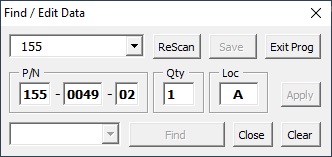
Image of the Find/Edit form with the last new buttons added as compared to version 1.0
Changes from 1.26 to 1.27:Changes from 1.26 to 1.27:
Find / Edit Data:
To increase awareness about multiple matches when a P/N has been searched the dropdown list now changes color to green until selected.
Changes from 1.25 to 1.26:
Find / Edit Data:
Added Button to Save changes.
Changed text on Quit button added in v1.25.
Changes from 1.24 to 1.25:
Find / Edit Data:
Added Button to Quit program without save.
Changes from 1.23 to 1.24:
Find / Edit Data:
Added Esc keystroke to close
form on dropdown list, P/N boxes and Find button.
P/N and Qty boxes now accept only numbers. Last P/N box also accepts ?
(question mark).
Info message added if multiple entries were found.
New Data:
Added Esc keystroke to close form on
P/N boxes.
Various minor other changes in performance for each text box.
Create New Worksheet:
Text box double click now clears text box.
Esc keystroke now closes form.
Module1:
Version info changed.
Changes from 1.22 to 1.23:
Find / Edit Data:
An invisible dropdown list which by mistake was left visible now fixed.
Changes from 1.21 to 1.22:
Find / Edit Data:
If an entry was changed, i.e. number of items or location, the change was only made on the excel sheet. If the item was selected again the change did not appear
in the boxes. Also to select the item again another item had to be selected first. Now the drop down list goes to default entry after a change and the changes
appear in the boxes when the item is selected again.
The confirmation window that appeared after a change is now removed.
Changes from 1.2 to 1.21:
Sheet 000 (Template):
Find Part form now opens at start (or Create New Worksheet form if no data has been previously entered).
New Data:
Dropdown list now resets when Clear is selected.
Previously when a worksheet was named a three digit number + a comment (e.g. 311 unsorted) the whole name was inserted in the first box of the P/N to search for and
as a result no P/N could be found. Now only the first three digits are inserted when they are a number.
Changes from 1.1 to 1.2:
Changed Ea to Qty on all sheets and forms
New Data:
Tabbing in Qty (Ea) box now enters a 1 if box is empty
Minor change in appearance
Find / Edit Data:
If selected from a sheet other than 000 this sheet is now default i.e. in select box and P/N box
Selecting another main P/N (moving to another sheet) now clears Qty (Ea), Loc and rescan
Change in any P/N box now disables Qty (Ea), Loc and Apply (if third P/N box was changed e.g. -00 to -01 and applied the the initial worksheet value e.g. -00 was changed)
Change in third P/N box now enables Find (changed in V1.1)
Changes from 1.01 1to 1.1:
Sheet 000 (Template):
Added code to replace the old pw protected 000 sheet if version is 1.0 or 1.01,
Added code to update version and date info if ever changed to higher than 1.1,
Removed password from protection,
Changed some text and color,
Added Update/Check version web address with hyperlink,
Added "Mail To" text with hyperlink,
Increased width of Loc Column to 10.0.
New WorkSheet:
When creating a New Sheet it did not appear empty (last cell was not on row 2).
New Data:
Only one character accepted in Loc Textbox - Changed max length of Loc Textbox to 10,
Loc Textbox now isn't enabled by default, it becomes enabled when a complete P/N has been entered,
Change in Loc Textbox now doesn''t clear P/N,
Double Click in Loc Textbox now clears the Textbox
Loc Textbox now accepts lower case letters
Tab from Ea Textbox now always sets focus on Loc Textbox
Loc Textbox width slightly increased,
Window layout slightly changed for better tabbing (frames removed).
Find / Edit Data:
Rescan Button should now disable itself,
Loc Textbox width slightly increased,
Change in P/N Textbox 3'd group should not enable FindButton,
Change in P/N TextBox 1'st group should sometimes enable Find ,
When searched value in P/N Textbox 2'nd group was found regardless of value in P/N Textbox 1'st group,
Ea and Loc Frames are now not enabled by selecting P/N (Sheet),
Some Tab Stops and Tab Indexes were wrong,
Apply Button now doesn't do a ReScan.
Changes from 1.0 1to 1.01:
Bugfixes:
A search for a P/N (Ctrl + Z) where the center characters are the same as the first returned all entries i.e. it search for the center characters but the search
is done on the whole P/N rather than the center numbers only (e.g. search for 151-151 will return all 151-xxxx-xx),
Pressing Ctrl+A on the Template Sheet returned a Run Time Error,
Apply button on Find / Edit Data screen could sometimes be enabled when it shouldn't i.e. changes could be made to a P/N different from the one shown in the P/N frame.
Known Issue: Enter New Data window does not accept more than one character for Location.
Workaround: Change manually on Worksheet or use Find / Edit Data window (Ctrl + Z).
Version 1.0
Initial version.
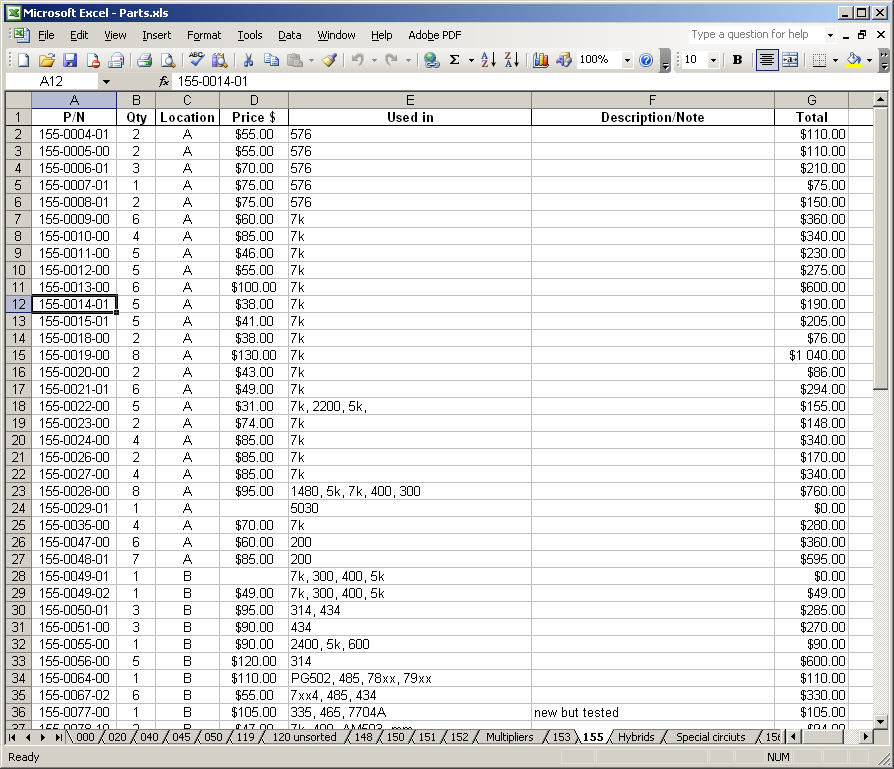
Here's a screen shot of a typical Worksheet:
P/N is the Tek Part Number with the format xxx-xxxx-xx.
Qty is the number of items in stock of the particular Part Number.
Location could be a number or label of a drawer or equivalent. Limited to 10 characters but works best with three characters or less.
Price could be the actual orignal Tek price or any price of your choice.
Used in and Description/Note are free text fields.
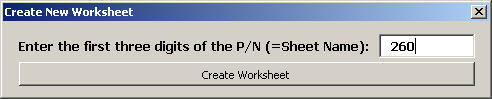
Press Ctrl + Q to create a new Worksheet:
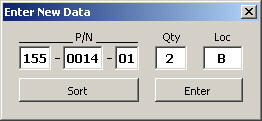
Select a Worksheet and press Ctrl + A to add a part:
Enter the P/N. The number of items and Location are optional (The location of the last part will show up in the Loc box when this routine is initiated.)
Pressing space bar in a blank center box will enter the last P/N on the Worksheet + 1 (e.g.if last P/N is 151-0307-00 the new will be 151-0308) and move the cursor to the last P/N box.
Pressing Enter in a blank last P/N box will enter 00 and move the cursor to the Qty box.
Pressing Enter in a blank Qty box will enter 1 and move the P/N to the Worksheet.
The entered part will be added to the end of the list.
Click on Sort and a choice of Sort Only or Sort & Combine will show up. Sort & Combine will sort the entries and add the number of items to an already existing entry of the same P/N.
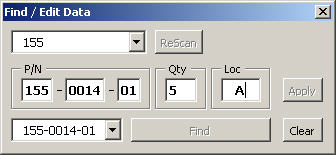
On any Worksheet press Ctrl + Z to find and/or edit the properties of a part:
From the upper drop down list select the first digits of a P/N, i.e. Worksheet and the sheet is selected and scanned. All entries on this sheet are then added to the bottom drop down list.
To find a part either select from the bottom drop down list or enter it manually and click Find. A partial entry in the center box, e.g. 123, will find all entries that contain this combination.
In the example 155-0123-00, 155-1230-00, 155-1232-00 etc.
Number of items and Location can be manually changed.
The entries under Price, Used In and Description/Note have to be entered manually by selecting each cell.
Download Tek Parts.Manager v1.33 here.
Tek Parts Manager 1.33 Update Update a previous version without losing data by importing the specified files only. Instructions on how to update are included.
Email me with comments. /Håkan